Build. Digital. Experiences.

We build and develop exceptional digital products & services, eCommerce, and brand communication solutions.
15 MINT FREE CONSULTATION CALL

A glimpse into our capabilities, shaped by our expertise across 500+ projects, showcasing what we can achieve for you

Ignite Your Digital Vision

Dive into digital creativity! Explore web development, design, UI/UX, and graphics.
Schedule your consultation below to kickstart your project. Let's bring your vision to life!

15 MINT FREE CONSULTATION CALL

Make Graphic Design work for You!

Professional Logos Portfolio

Our services

Company

We specialize in providing cutting-edge marketing solutions that help businesses of all sizes succeed in today's fast-paced digital world.
10
years in business
50+
designers and developers
We are available on

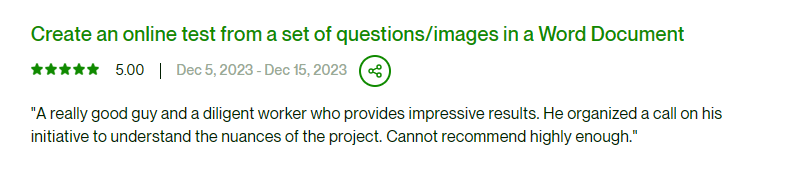
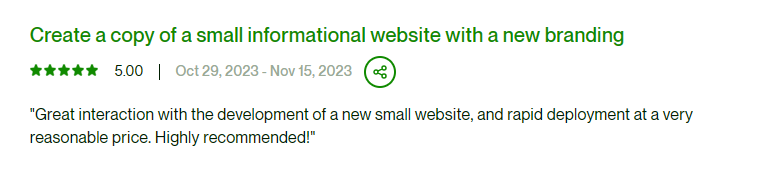
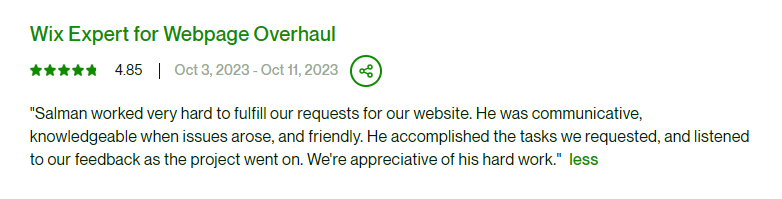
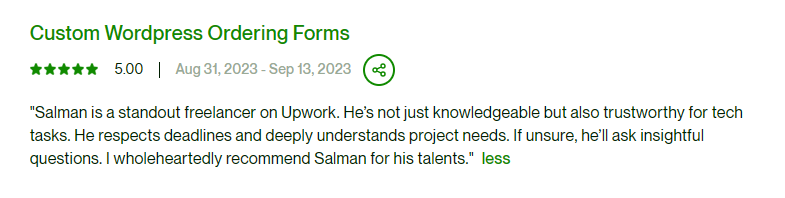
What They Say About Us

Slide 4 of 11.

FAQ

Frequently Asked Questions

Check out our FAQs for clear answers.

The Launcher serves as the primary command center of your device. It is the essential user interface (UI) that manages your home screen layout, app organization, and the overall visual navigation of your smartphone experience.
There are two intuitive ways to access and organize your applications:
●Home Screen Shortcuts: Tap any icon on your main screen for instant access. To reorganize your space, long-press an icon to drag it to a new spot, or stack it onto another icon to create a custom folder.
●The App Drawer: To see your full library of installed software, simply swipe up from the bottom of the home screen. This area lists every application available on your device.
If you wish to remove an app to free up space, you can use any of these three methods:
●Quick Desktop Uninstall: Long-press the app icon on your home screen and drag it toward the "Uninstall" or trash icon that appears at the top of the display.
●Via System Settings: Navigate to Settings > App Management (or "Apps"). Select the specific app you want to remove and tap the "Uninstall" button.
●Via Google Play Store: Open the Play Store and tap your Profile Icon. Go to Manage apps & device > Manage, select the app you want to delete, and tap the trash icon.

Read Our Blog.

Technology

What is Web3 and how will it change the way we use the internet?

31
Jan
Marketing

Untold Secrets of Digital Marketing: Tricks No Marketer Will Tell You

30
Jan
Technology

All You Need to Know About Artificial Intelligence and Its Future

30
Jan
News

Web Security: Its Importance and Career Prospects

28
Jan
Technology

Case Study: Pixel Pulse SEO Transformation

Elevate Your Vision
Secure Your Spot Now!

Ready to transform your vision into reality? Seize the opportunity! Click 'below to schedule your consultation.
Let's turn your ideas into extraordinary digital experiences.

15 MINT FREE CONSULTATION CALL